Use this section to install, uninstall and get basic information on modules.
Install Module
To install a new module into WB:
- download the zipped module archive from the WB Add-Ons Repository Modules arrive in your computer as a compressed, ZIP archive. The module installer expects a zip file, and will not work if the archive is already expanded.
Note: do not decompress/unzip the downloaded module archive before installing it! - in Add-ons > Modules > Install Module, click on the “Browse” button, and select the downloaded zipped archive in your hard drive
- once the path to the zipped archive appears in the “Install Module” field, click on the “Install” button
Depending on how large the module is, and on the speed of your internet connection, installation might take from several seconds to a several minutes. Once installation is successfully completed, a brief message will flash on screen.
If your browser automatically unzips the files you download, you still can install modules manually.
Using your favourite ftp client, upload the full, complete, unzipped directory into the “modules” sub-directory of your WB installation. Then, log-in into your Add-ons > Advanced, and then use the “Reload Add-ons” tool to reload all modules. This will force WebsiteBaker to manually 'activate' the newly uploaded module.
Uninstall Module
Removing a module permanently deletes all information from your site related to the module. This may include Admin information that was part of the module, module-specific user preferences, and module settings.
Note:
Un-installation cannot be undone! All module-related information will be permanently lost!
To uninstall a module:
- in Pages, delete any site pages - or page sections - that use the module to be uninstalled
- in Add-ons > Modules > Uninstall Module, select the module from the “Uninstall Module” drop-down menu
- click the “Uninstall” button
The module is immediately uninstalled, and any information related to it permanently and irretrievably deleted.
Module Details
To view version, author, description and other useful information about your installed modules:
- select the module from the “Module Details” menu
- click the “View Details” button
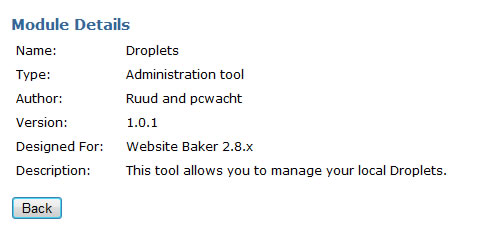
sample information obtained in “Module Details”